How to Record a Zoom Podcast
Specifically, how to set up and record a podcast via zoom that will be easy for me to edit for you!
For Guests:
Within your Zoom meeting, go to Settings > Video & Effects, and disable "auto-framing"
Within your Zoom meeting, go to Settings > Videos & Effects, and disable virtual backgrounds (unless you have a green screen)
Try your best to remain in the center of the frame
Wait a minute after you've finished speaking to mute/drink water/look at notes/etc., so I can transition you off the screen before you do so
Be in a location without background noise, even if you're using a microphone, as when the interruption is on the same audio track it's very hard to remove
Try to speak in full sentences, or if you've been pausing a lot in the middle of a sentence, pause again and then say the whole sentence over and I'll edit out the mess ups
Find a space with good lighting
Natural lighting is a good bet, as long as it isn't coming from behind you
For Participants Who Are Recording*:
*I recommend at least two
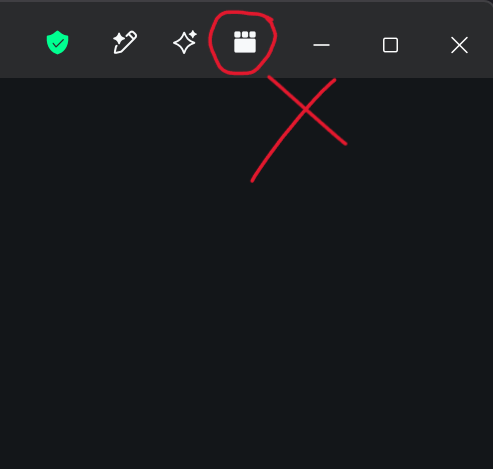
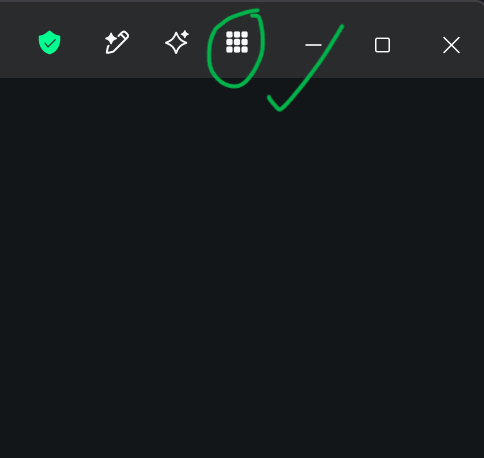
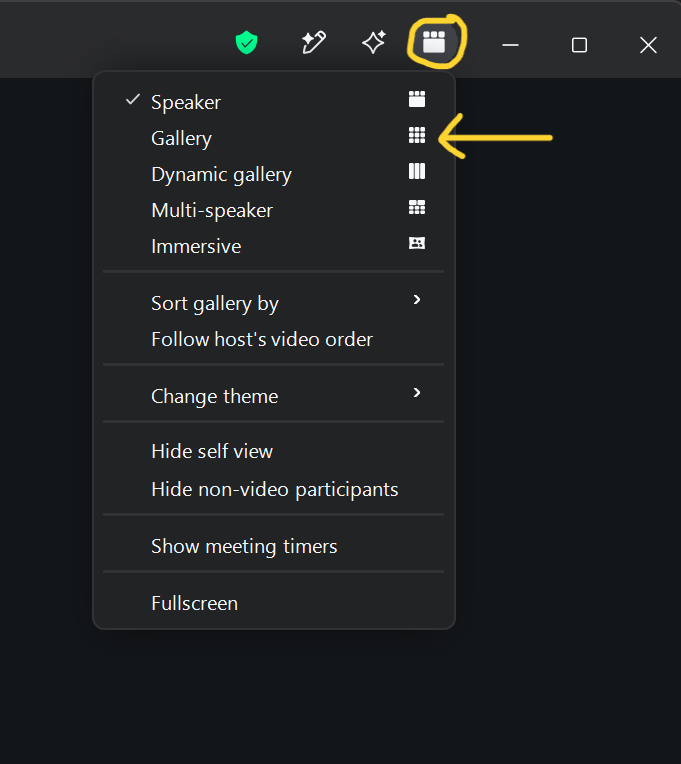
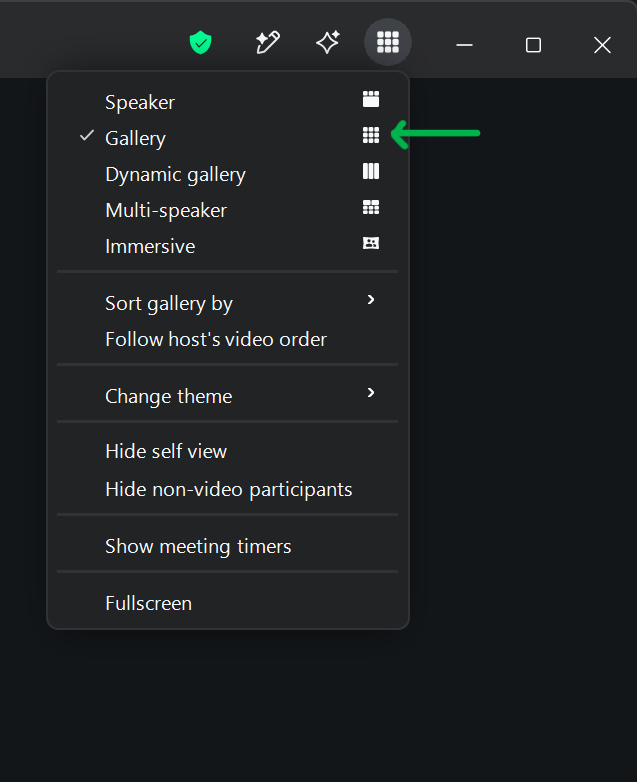
Have the Zoom view space in "Gallery" mode
For Participants Who Are Recording (continued):
Wait until you're ready to get started with the actual podcast before hitting "record"
This saves on space and me having to find the start point
After you start recording, but before you get started speaking, have each participant, separately, visibly do a loud clap
This acts like a clapboard on movie sets and makes it easier for me to line up your audio
Go to Settings > Display & Controls > Display, disable "Keep participant names visible"
Go to Settings > Display & Controls > My video, disable "Hide your own video in the video gallery"
Go to Settings > Recording , turn off "show participant names"
Go to Settings > Recording > click "Advanced"
Turn on "Record separate participant audio files"
Turn on "Optimize for third party video editors"
Explanations
Within the Zoom meeting, go to Settings > Video & Effects, and disable everything under Appearance, most importantly "auto-framing"
This is because the auto-framing can be jarring when editing between clips, and can result in you looking bigger/smaller in strange ways. Just focus on staying in the center of your frame yourself, and I'll take care of any big swings
Unless you have a green screen, turn off virtual backgrounds.
You can use blur if you really need to, but it's best practice to just have a not distracting, well-lit background behind you.
This is because the calculations Zoom does to replace your background can result in visually distracting glitches and/or frozen video footage, even if your internet connection is good