How to Leave Comments on Dropbox
Specifically, how to leave comments on videos hosted in Dropbox so that they contain timestamps, which I, as your video editor, can address without having to ask for clarification about where in the video your concern is.
Please note that you will have to be logged in to Dropbox to leave comments.
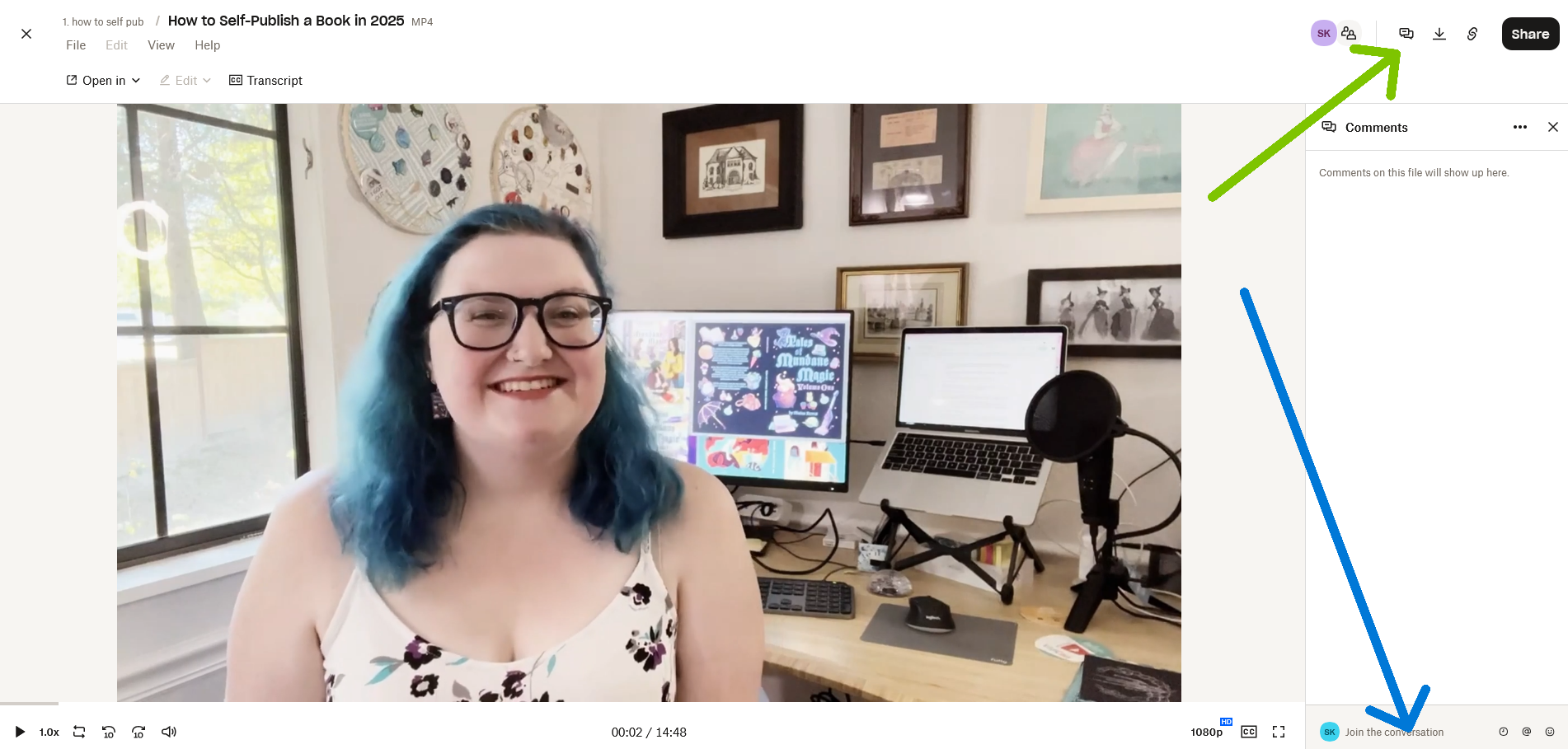
Click into the comment box in the bottom right of the video file, as shown by the blue arrow.
If the comment box is not showing, click on the icon in the top right of two chat bubbles over each other, as shown by the green arrow.
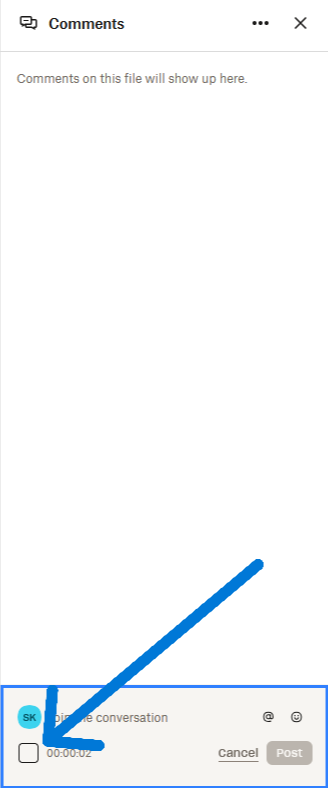
Click on the box in the bottom left corner, next to the current video time. This will select the timestamp, and have every comment you leave include the timestamp where are you commenting.
As long as that box has a checkmark, meaning that it’s enabled, when you see something in the video you want to note, you can pause at the exact time, and when you leave your comment, it will include the timestamp, so I know exactly when in the video you want to address something.
